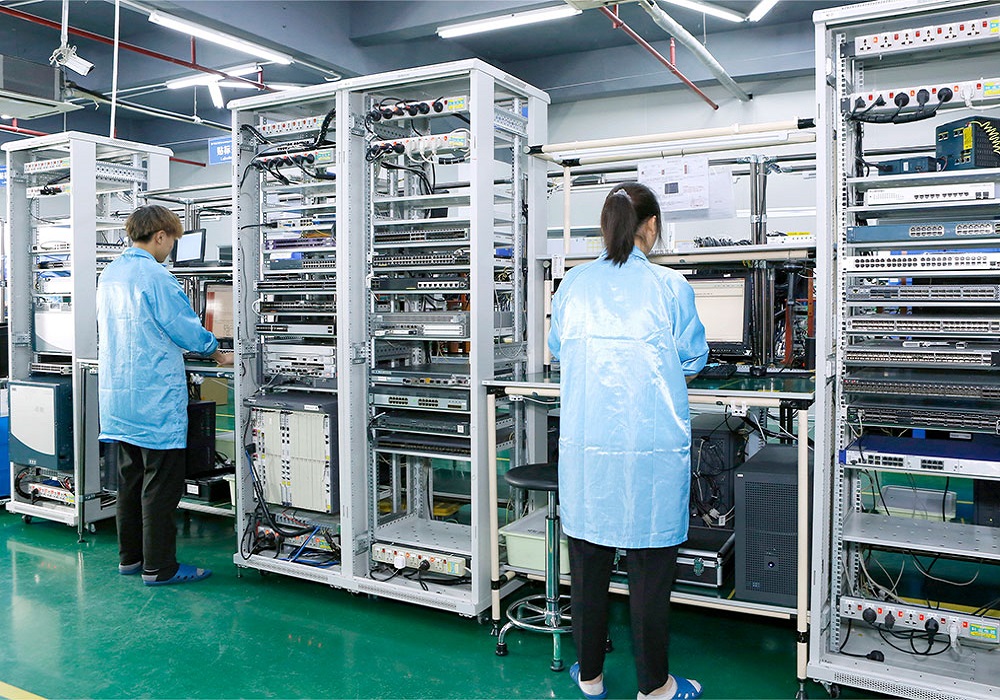
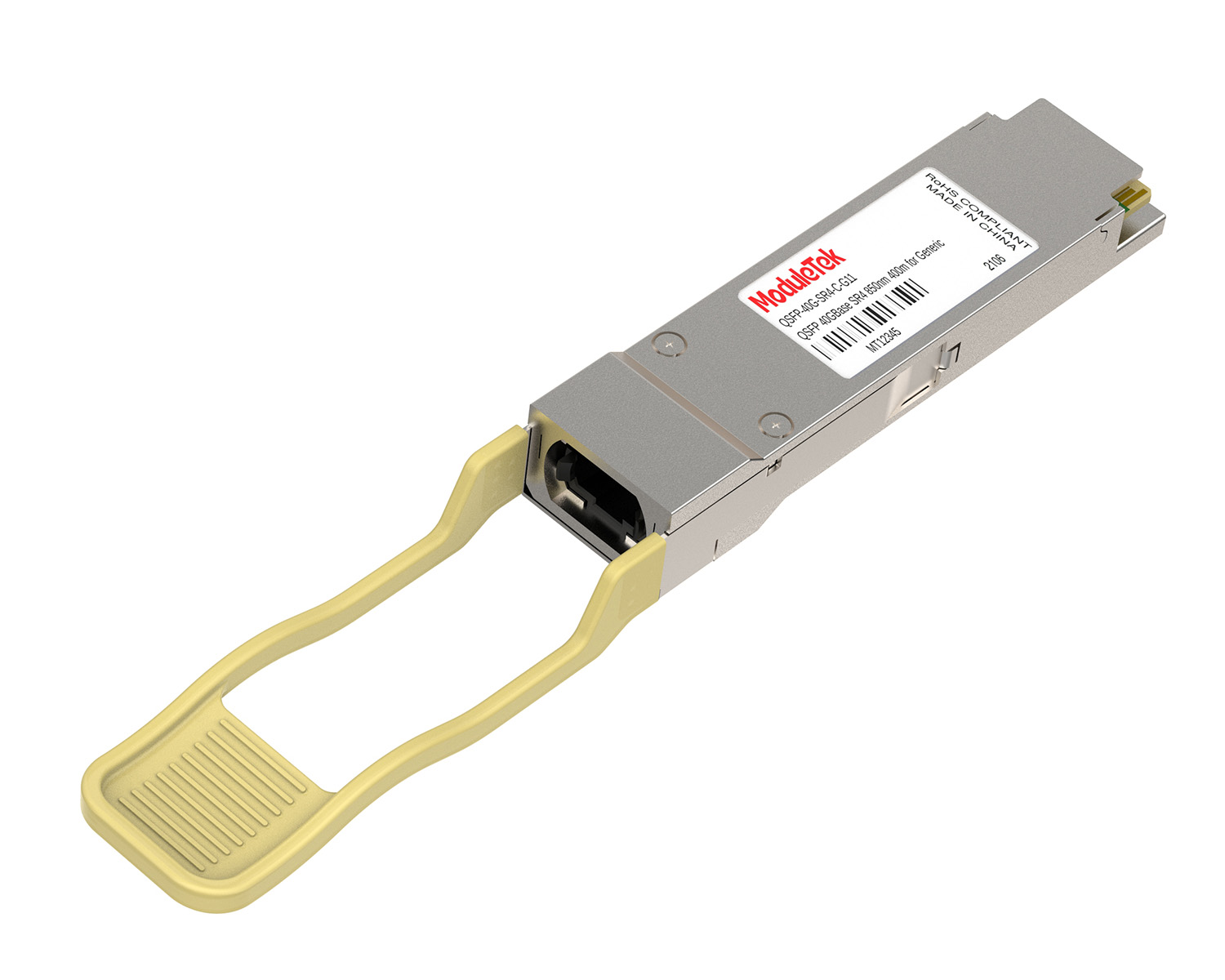
 40G/100G Optical Transceivers
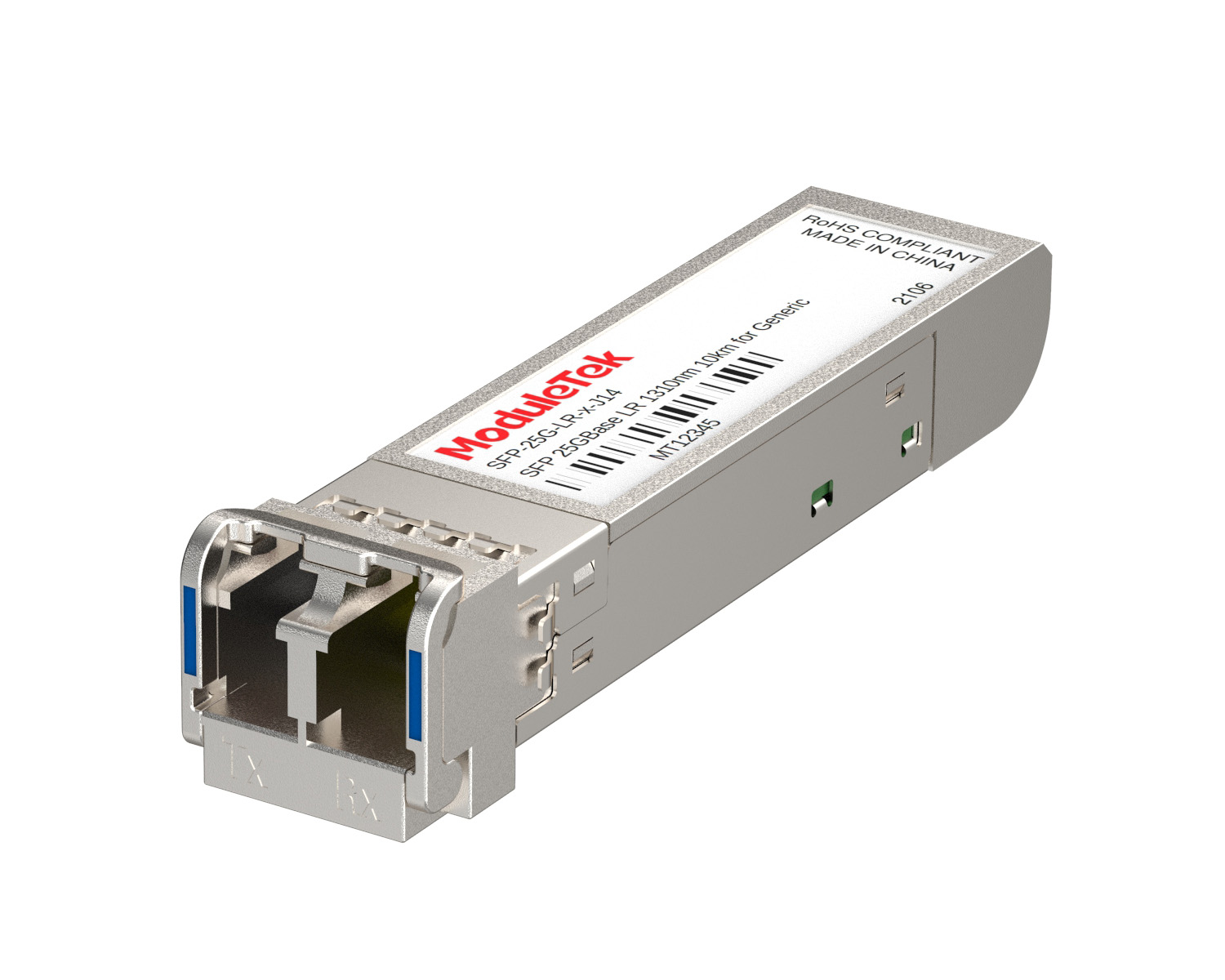 25G Optical Transceivers
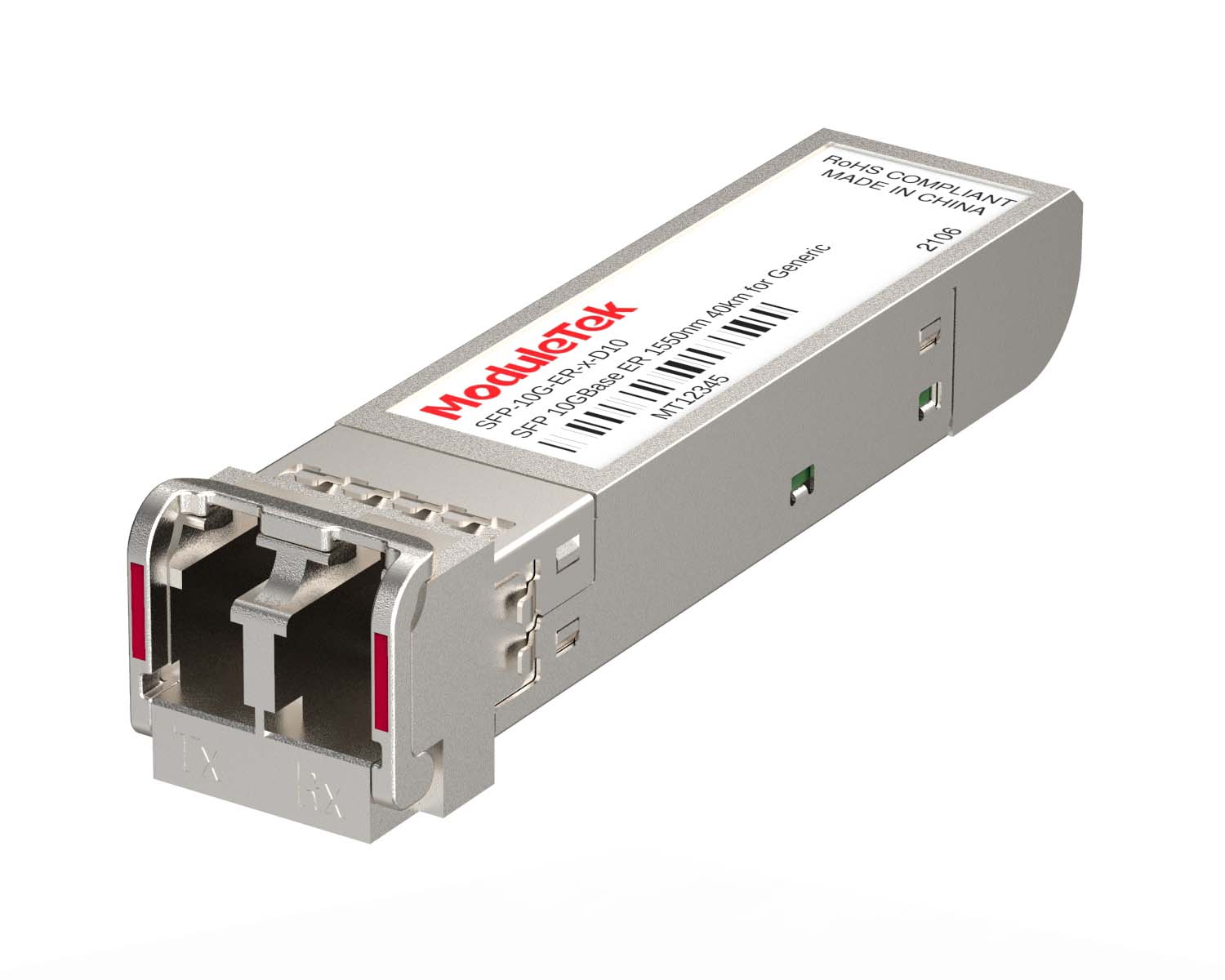 10G Optical Transceivers
 155M/2.5G Optical Transceivers
 1G Optical Transceivers
 FC 16G/32G Optical Transceivers
 1G BIDI Optical Transceivers
 Dual-Rate Optical Transceivers
 CWDM Optical Transceivers
 DWDM Optical Transceivers
 SGMII Port Optical Transceivers
 XFP Optical Transceivers
 100M/1G/10G Coppers
 Full-Rate AOC & Breakout Series
 10G/40G Active DAC Series
 Full-Rate Passive DAC Series
 40G/100G Passive Breakout DAC Series
 Regular/MTP-MPO Fiber Patch Cords
 MT2011
 MT2010
 CodingBox
 QSFP to SFP Adapter
How To Configure NIC Interface FEC Mode On Windows System
Time: 2023-12-29
On the use of optical modules in the network adapter, we have previously introduced How to read optical Mmodule information on a network card on Linux systems , but also introduced Linux system how to configure the Network card interface FEC Mode , then today we introduce the network card in the Windows system and how to view and configure the interface FEC mode.
Windows system can be viewed through the Device Manager / modify the interface configuration, but also in the desktop application Windows PowerShell enter commands on the network card interface to view / configure, the following two ways are introduced.
1. Interface Status View
a. Find the corresponding NIC interface in Device Manager, double-click it to enter the property sheet, click "Link Speed" to view the interface status, and at the same time, this interface can be configured with interface rate and duplex mode.
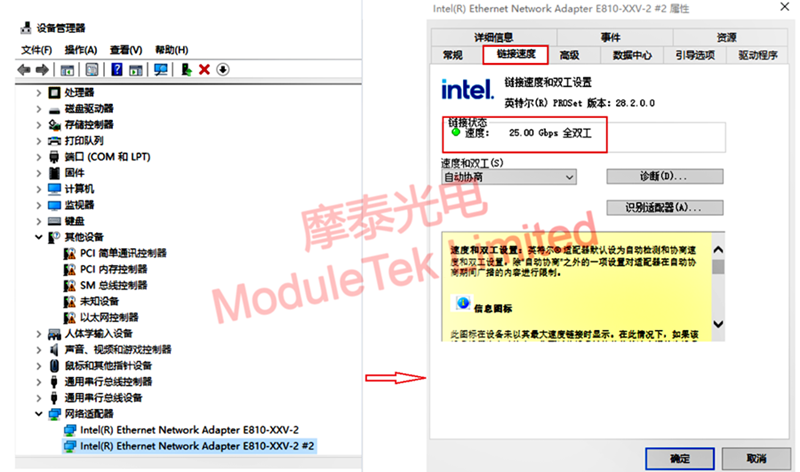
Figure 1 Interface Status View
b. In Windows PowerShell, execute the command "Get-NetAdapter" to view the interface information; the output information under this command includes the interface network address, interface name, status, rate and so on.
Explanation: Execute the command Get-NetAdapter | Format-List to view the complete name of the network card and driver and other information.

Figure 2 Viewing Interface Information
2. FEC Mode Configuration and Viewing
a. In the Device Manager property sheet, click "Advanced", select "FEC Mode" in the Settings drop-down box, and select the FEC mode you need to configure in the Value drop-down box.
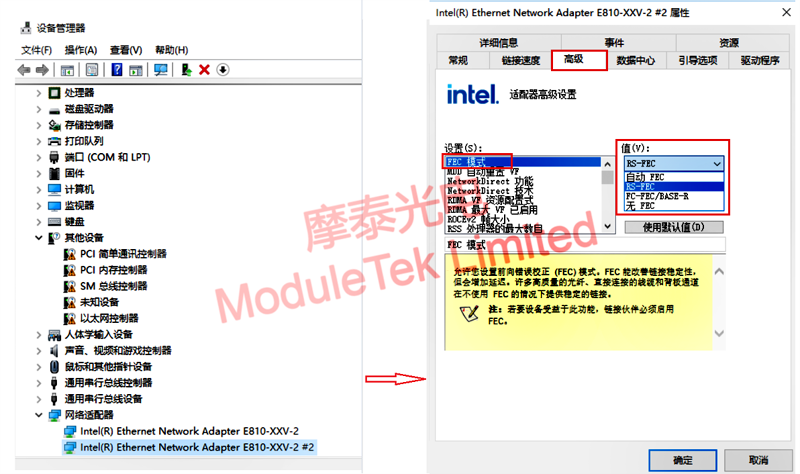
Figure 3 FEC Mode Configuration and Viewing
b. In Windows PowerShell, execute the command "Set-NetAdapterAdvancedProperty -Name "adapter_name" -DisplayName "FEC Mode" -RegistryValu "value" "to set the FEC mode of the specific interface. interface-specific FEC mode.
Execute the command "Get-NetAdapterAdvancedProperty -Name "adapter_name" -DisplayName "FEC Mode" to view the interface-specific FEC mode; or execute the command "Get- NetAdapterAdvancedProperty -Name "adapter_name" to view all the configuration items of the specific interface.
Note: ①adapter_name is the name of the interface, which can be viewed by using the above command Get-NetAdapter.
②value indicates the specific value, the number is related to the registry settings, this test 0 means automatic FEC, 1 means RS-FEC, 2 means FC-FEC, 3 means no FEC.

Figure 4 View interface-specific FEC modes
Moduletek Limited is at your service.
If you have any questions about the above content, please contact us via email: sales@moduletek.com